

Implement in Sketchware
Learn how to add and use PG_DevCallService in your Sketchware or Sketchware Pro projects.
Blocks & Component JSON
Import these JSON files directly in Sketchware/Sketchware Pro to get pre-made blocks and component setup.
Update these URLs to your actual file locations if different.
Introduction
This guide will help you integrate and use PG_DevCallService for calls inside Sketchware or Sketchware Pro. Follow the steps below for a smooth setup and reliable implementation.
Requirements & Important Notes
- Latest version of Sketchware or Sketchware Pro recommended.
- Working internet connection (required for API calls).
- You must have an active API key from your dashboard.
- Copy-paste code blocks carefully, and do not share your API key publicly.
Required Android Permissions (AndroidManifest.xml)
<uses-permission android:name="android.permission.CAMERA" />
<uses-permission android:name="android.permission.READ_EXTERNAL_STORAGE" />
<uses-permission android:name="android.permission.WRITE_EXTERNAL_STORAGE" />
<uses-permission android:name="android.permission.RECORD_AUDIO" />
<uses-permission android:name="android.permission.INTERNET" />
<uses-permission android:name="android.permission.MODIFY_AUDIO_ROUTING" />
<uses-permission android:name="android.permission.MODIFY_AUDIO_SETTINGS" />
<uses-permission android:name="android.permission.REGISTER_CALL_PROVIDER" />
<uses-permission android:name="android.permission.ACCESS_NETWORK_STATE" />
<uses-permission android:name="android.permission.FOREGROUND_SERVICE" />
<uses-permission android:name="android.permission.FOREGROUND_SERVICE_MEDIA_PROJECTION" />
<uses-permission android:name="android.permission.CAPTURE_VIDEO_OUTPUT" />
<uses-permission android:name="android.permission.FOREGROUND_SERVICE_MICROPHONE" />
<uses-permission android:name="android.permission.FOREGROUND_SERVICE_CAMERA" />
Request runtime permissions for CAMERA and RECORD_AUDIO before starting a call. For Android 10+ use scoped storage; Android 13+ declare foreground service types as above.
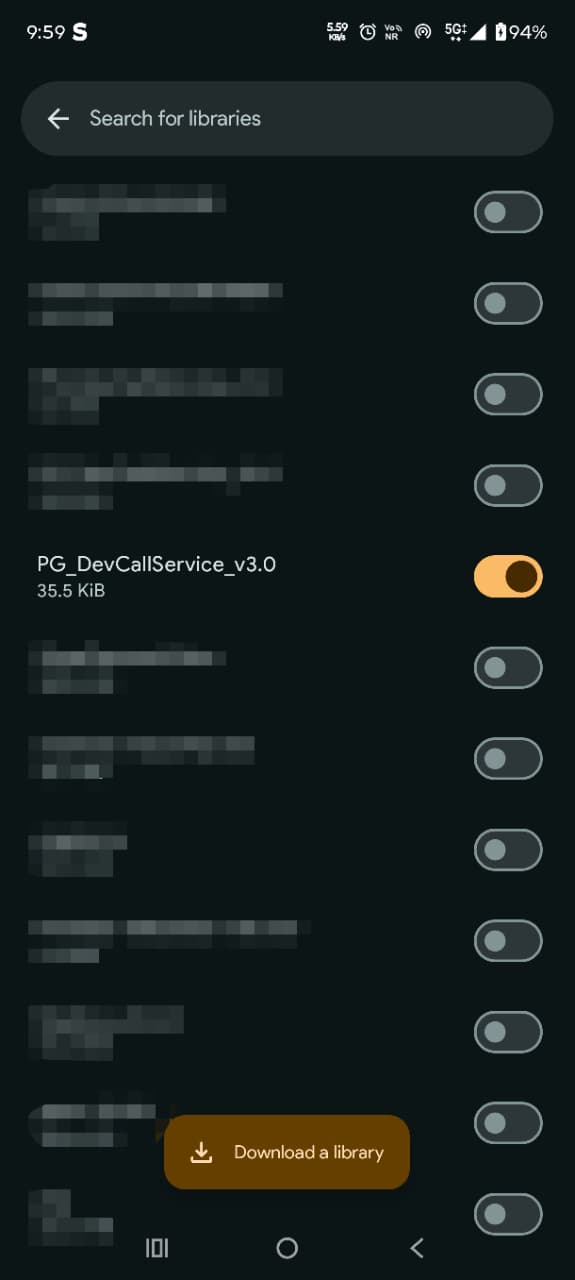
Step 1: Setup Library in Sketchware
- On your Sketchware/Sketchware Pro app, go to your project.
- Open the Library Manager and click "Import Library".
- Paste/add the dependency code:
// Add library import implementation 'com.pgdev:callservice:1.0.0' - Sync/build your project.
Step 2: API Key Configuration
// Initialize the library (place in Set ID button click event)
String customId = "your-customID";
String apiKey = "your-apiKey";
call.init(customId, apiKey);
Step 3: Usage Example
// Start a call to a user ID
call.startCall("receiver-id");
Replace receiver-id with the actual target user ID.
Step-by-step Tutorial (with pictures)
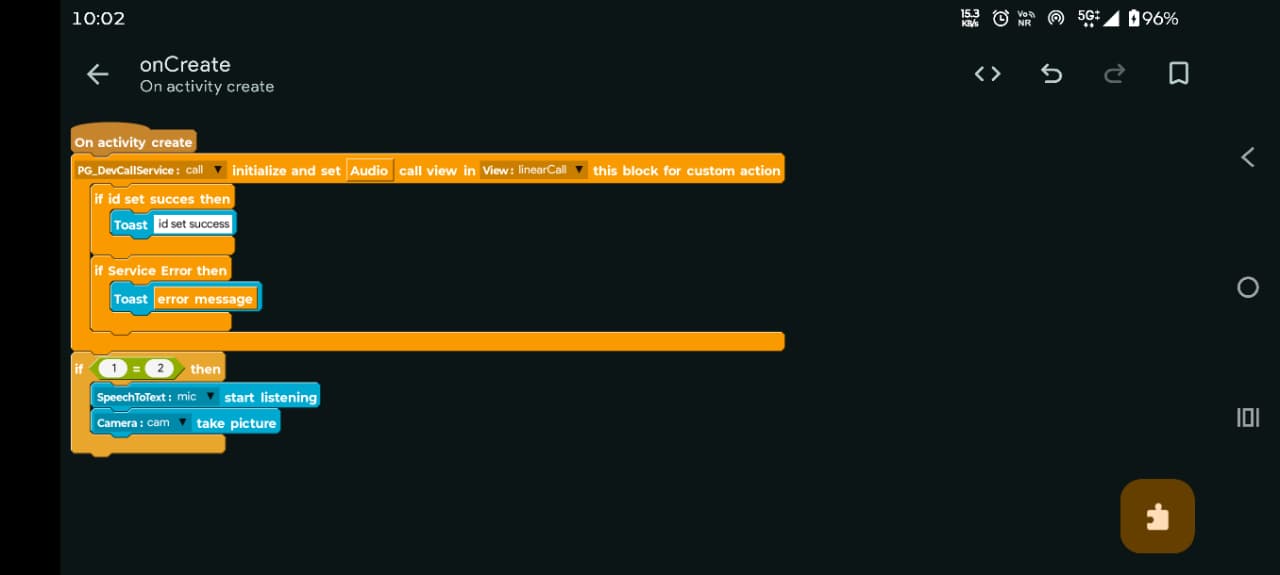
These screenshots show how to add and use the library in Sketchware/Sketchware Pro using blocks. Tap an image to view full size.
1) Library add/setup
2) onCreate: Initialization blocks
3) On call end

4) On call received

5) On call start

6) Initialization/API key error reporting

7) Get call duration as string / show toast

8) Video toggled callback

9) Audio toggled callback

10) Set custom ID and validate API key

11) Call a friend/online user by ID

12) End ongoing call

13) Toggle audio (mute/unmute)
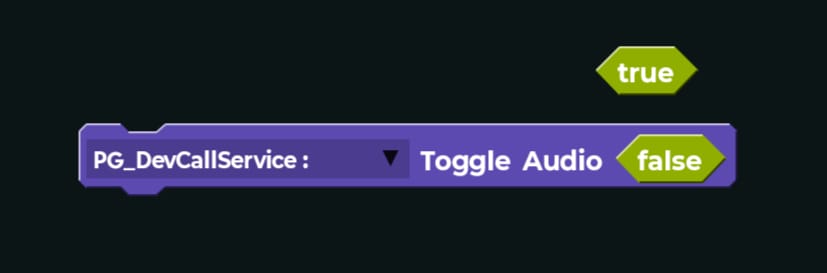
14) Toggle video (off/on)

15) Switch camera (front/back)

Advanced UI Blocks
16) Advanced UI: onCreate setup

17) Advanced UI: video toggle button icon cycle
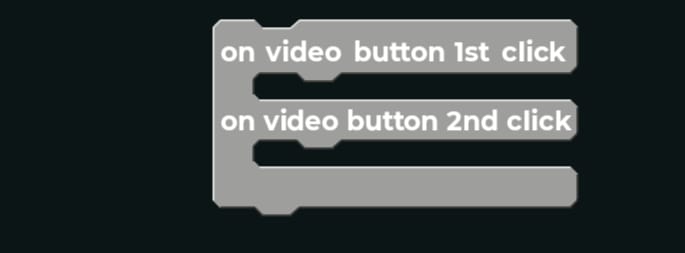
18) Advanced UI: audio toggle button icon cycle

19) Advanced UI: camera icon change

Troubleshooting
- Error: "Invalid API key" Check your API key and make sure it's active.
- If you see network errors, ensure the device has internet access.
- Refer to the general troubleshooting guide for more help.
Support & Feedback
Need more help? Contact our team at support@pgdevcallservice.com or join our community chat.